

Endpoints are a key target in cyberattacks, so it’s critical to ensure that you’re able to effectively triage and investigate alerts from your endpoint detection systems. Including threats that hide in memory, like fileless malware or scheduled tasks created by an attacker.
Intezer’s Endpoint Scanner is a powerful forensics tool for detecting advanced in-memory threats on Windows operating systems, including identifying malicious code injections, packed and fileless malware, or any unrecognized code. Security teams can run the endpoint scanner on a suspected endpoint, as a “hunting” scan across hundreds of endpoints in an environment, or Intezer can run a scan as a response to an alert from your EDR platform (like SentinelOne, CrowdStrike, or Microsoft Defender).
An endpoint scan result includes a lot of information: file analysis summary, link to full analysis, file properties such as sha256, md5, and other hashes, process tree, file paths where the file was found on disk, and the creation time of each file is displayed.
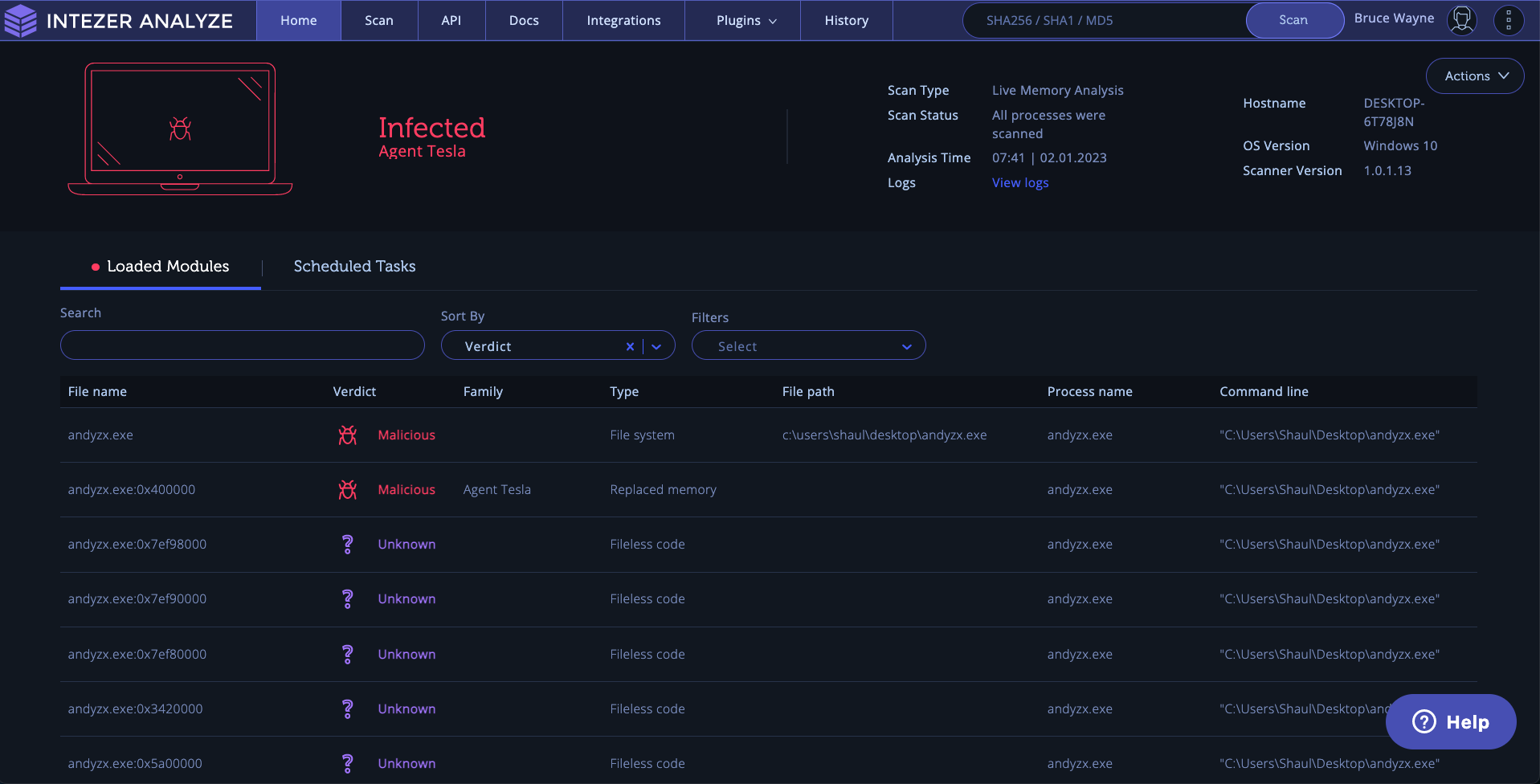
While the amount of information from an infected endpoint scan might be overwhelming, it is important to know which details to pay attention to and how to utilize them for an initial investigation and malware removal. Where should you start?
How to approach a malicious endpoint scan result
In this example, Intezer identified this machine was infected with Agent Tesla, as we can see from the classification on the top left:

On the front page view, we can see the machine got infected due to this originating file: andyzx.exe and the replaced memory process that Intezer classified as Agent Tesla, a spyware Trojan written for the .NET framework.

The first thing we should look at is the file path, and process id which can help us locate the threat on our machine in order to uninstall it.
Then, the process tree, which we can find by clicking the malware process or file. This information can help trace the running process and terminate it.

The next step we should take is to look for the downloaded link by clicking the file's information and in case we were able to detect one, that URL should be blocked.

In some cases the attacker has created a scheduled task, which we can find in the near tab called Scheduled Tasks:
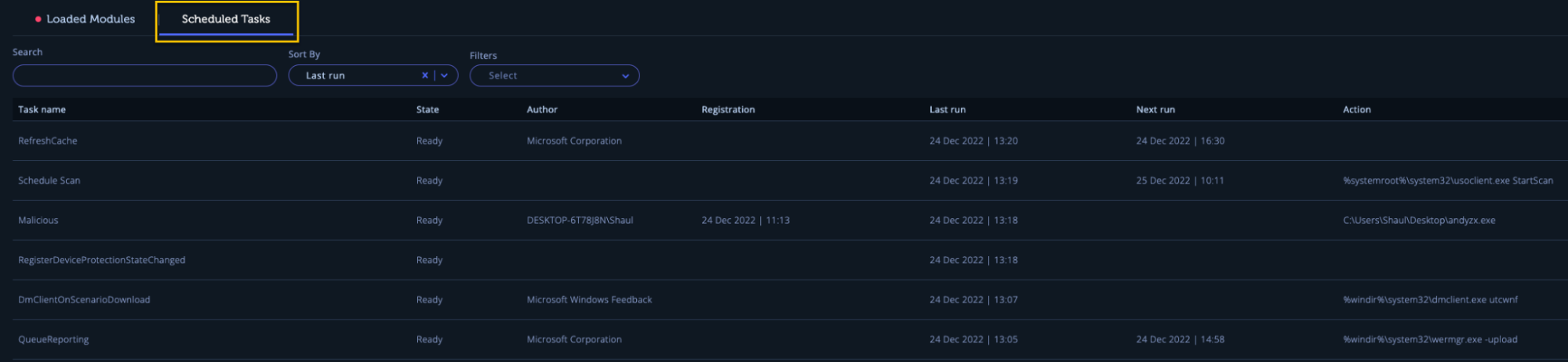
This tab provides information about all the registered scheduled tasks on the endpoint allowing you to find suspicious scheduled tasks that could have been registered by an attacker to achieve persistence. (Note: the Scheduled Tasks feature is supported only when using the scanner version v1.0.1.12 and above, so you want to make sure you’re using the updated version).
Clicking one of the scheduled tasks provides additional info, including location, description, whether the task is hidden, and the executing user/group. You can search, sort, and filter the tasks to quickly find and focus on specific tasks that may be suspicious.
Then, search for the suspicious scheduled task using its name on your machine and delete it.
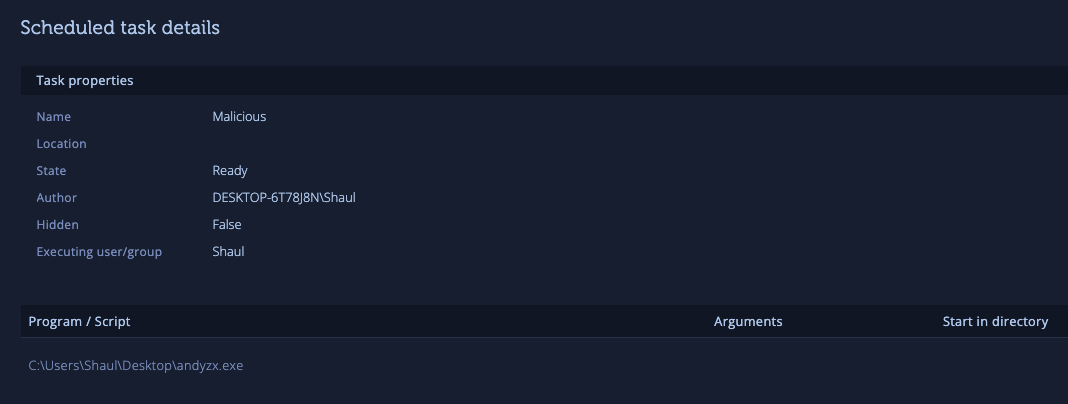
By paying attention to details like file paths, process trees, and scheduled tasks, we can locate and terminate malicious processes and prevent future infections.
Protecting your environment from infected endpoints
With the steps outlined here, you can approach a malicious endpoint scan result with confidence and take the necessary steps to protect your system.
To get the latest version of our endpoint scanner, ensure that you download the scanner from the Endpoint Scanner page or launch the scan from within your endpoint security system.
The Endpoint Scanner is a capability included in Intezer’s Autonomous SOC plan – to learn more about how Intezer can automate alert triage, investigations, response, and hunting tasks for you, book a demo here.

Intezer
Count on Intezer AI SOC to triage, investigate and respond to every alert at unmatched speed and accuracy.
In this article
Share article
Related Articles

AI SOC
100 CISOs ranked their 2027 priorities for a16z: AI SOC takes #1
Andreessen Horowitz (a16z), one of the world's biggest venture capital firm, recently published their survey of 100 CISOs at companies with more than 1,000 employees. The findings reflect what we are seeing with our customers and provide a realistic outlook for our era of agentic attacks.
.svg)
AI SOC
The end of the SOC pyramid
AI is retiring the SOC pyramid. Learn how a tierless AI SOC investigates 100% of alerts with forensic evidence while your analysts supervise outcomes.
.svg)
Research
5 min
NinjaMare and the enterprise security epidemic hiding behind a harmless label
The PUA label, aka "potentially unwanted application" means nuisance. Adware, toolbars, and other things that change your settings without asking. Our research team's findings say this label is far more serious than a mere nuisance.